
Bulin 47 AI Not Working? Upload, Generation and Download Fixes
Bulin 47 AI Team · Last updated:
On this page
Start with the stage that failed: photo upload, content checks, generation, or download. Check the existing task before submitting again. A new generation uses credits and may leave you with two tasks when the first one was still processing.
This guide follows the product workflow and links to the detailed photo and download guides for those steps.
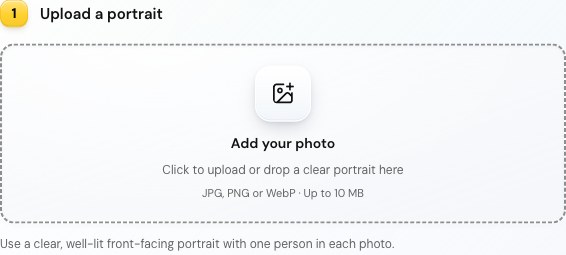
The actual photo-upload panel; no video was generated for this screenshot.
My photo will not upload
Check that your image meets the photo format and size requirements, then select it again. A HEIC image must be exported as JPG or PNG; renaming its extension does not convert it. If a supported file still fails, keep the error message and contact support before generating.
Generate is disabled or my input is rejected
Check that you have selected a photo, confirmed permission, signed in when prompted and entered lyrics if using a custom scene. Then review the supported settings and the required credits.
Photos and custom lyrics must pass content checks before a video task is submitted. Rejected input or an unavailable required check does not deduct generation credits. Follow the displayed explanation and use an appropriate image or text. If a check is temporarily unavailable, wait and try later rather than repeatedly submitting the same request.
If the service is unavailable or your balance is too low, use the message shown in the studio. The pricing page explains one-time top-ups and the quote shown before generation.
My task is still processing
Open My videos using the same account. Refreshing the page does not mean you need to purchase or submit the video again. Check the saved status and task identifier.
A processing task is not a confirmed failure. Completion time can vary; this guide does not promise a fixed wait. If a task remains unresolved, contact support with its ID and approximate submission time. Do not include a password or payment-card details.
My task failed. Where are the credits?
When a task is confirmed as failed, its reserved credits are automatically returned to your balance. A task still awaiting a result has not reached that state. If the task says failed but your balance appears unchanged, refresh the account and report the task ID if the issue persists.
A credit return restores your service balance. It does not reverse the original payment. Cash-refund requests follow the Refund Policy: request within seven days of purchase, with unused credits refunded according to the pack's eligibility and unused amount.
The face, hands or clothes look wrong
AI can change facial details, hands and clothing. Check your input using the photo checklist. Higher resolution does not guarantee a corrected face or gesture.
Original mode follows the built-in reference; custom scenes generate new motion. A successful result you dislike is not automatically a failed task. Before another paid attempt, decide which input or setting you would change.
There is no sound, or the lyrics do not match
Check the player mute control and device volume, then try the downloaded file. Original mode uses reference audio; custom scenes generate vocals from your text and may change wording, pronunciation or timing.
The audio and lip-sync guide explains what each mode can do and which checks to make before another generation. Report a saved file that is silent or cannot play with its task ID.
The video succeeded, but I cannot download it
Sign in with the account that created the task and check its displayed expiry. Completed videos can be viewed and downloaded for 7 days. Within that window, try the completed result in My videos and check your device's downloads or Files app. If saving or playback fails, contact support with the task ID before access expires.
Buying more credits does not reopen an expired download. The download and sharing guide explains saving, access expiry and storage cleanup.
What should I send to support?
Submit a support ticket, or email support@bulin47videoviral.com if you cannot sign in. Include the task ID, approximate time, selected mode, exact error and what you already tried. For a payment issue, include the order number and purchase email.
Crop screenshots to the relevant error and remove unrelated personal information. Support does not need your password, API keys or full payment-card details.
For a fresh walkthrough, return to the one-photo tutorial or open the studio.