
Bulin 47 AI Video Size: When to Use 9:16, 1:1 or 16:9
Bulin 47 AI Team · Last updated:
On this page
Choose 9:16 for a vertical Bulin 47 AI video, 1:1 for a square composition or 16:9 for a landscape composition. Set the output shape before generation, then keep enough space around the face and hands in your source portrait. Cropping a finished video later can remove gestures you wanted to keep.
The input photo does not have to match the output ratio. These are separate decisions: the photo supplies the subject, while the video setting specifies the shape of the result.
Which aspect ratio should you choose?
Choose the ratio for the place where you plan to use the video and the space the performance needs. A tall frame suits a phone held upright; a wide frame leaves more horizontal room around the performer.
| Video shape | Useful when | Check before submitting |
|---|---|---|
| 9:16 vertical | You want a full-height phone composition for a short-form post. | Leave room for the head and gestures; keep important details away from the edges. |
| 1:1 square | You want a square feed composition. | Check that shoulders and hands can fit in the narrower composition. |
| 16:9 landscape | You want a horizontal player or a wider scene. | Keep the subject large enough to recognize without relying on a tiny face. |
These are composition suggestions, not a guarantee about a platform's upload rules. Check the destination's current preview and requirements. Some custom models also offer 3:4 or 4:3; available choices are shown in the studio.
How do you change the video shape in Bulin 47 AI?
Open the quality and duration control, find Aspect ratio, and select the shape before generating. The summary updates to show the current selection.
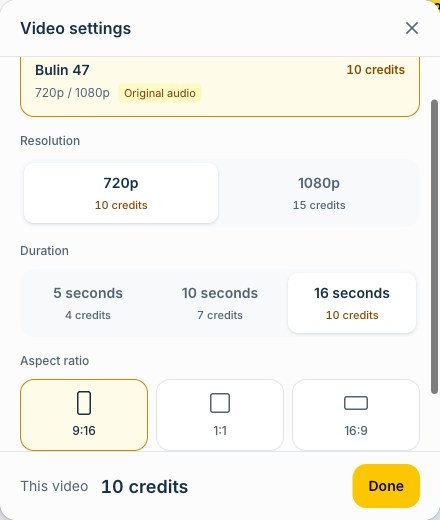
The aspect-ratio choices in the real settings panel. This screenshot uses the original Bulin 47 mode; other models can show different options.
Recheck the summary after changing the style or model, because the available combinations differ. Read the credit total as well. An output shape does not tell you the price; model, duration and resolution also matter.
If you are starting from scratch, follow the one-photo video walkthrough to select the style before choosing the output shape.
How should you crop the source portrait?
Keep the whole face and useful space around the subject rather than forcing the photo into the final video shape. An extreme vertical crop can fail the photo's dimension or proportion checks, even when the desired video output is vertical.
A practical preparation sequence:
- Start from the original photo instead of a compressed social-media screenshot.
- Crop to one main subject, keeping the eyes, chin and top of the head visible.
- Preserve shoulders and visible hands where possible. Avoid a crop that touches fingertips or cuts through the face.
- Recheck the image dimensions after cropping. Both sides must remain greater than 300 pixels and smaller than 6,000 pixels.
- Keep an uncropped copy so you can revise the composition without starting again.
For example, you can keep a usable 4:5 portrait as your input and choose 9:16 video output. That gives the generator an intact subject to work from, although it still has to interpret the surrounding scene. It does not guarantee the original background or pose will be reproduced.
The portrait requirements guide explains the file size, format and input-proportion limits.
Is 9:16 the same as 1080p?
No. Aspect ratio describes shape; resolution describes output detail. A 9:16 video can be offered at different resolutions. Selecting 1080p alone does not make a video vertical, and selecting 9:16 does not automatically choose the highest quality.
The original Bulin 47 mode offers native 720p and 1080p. Custom-scene resolution choices depend on the selected model. Choose from the actual options, then review the quote. Higher output resolution cannot guarantee that a blurry source face will become accurate.
Optional enhancement, when offered for an eligible completed video, is a separate action with its own credit charge. It does not replace checking the source photo or the framing before generation. See pricing for current credit information.
Framing FAQ
Can I change the aspect ratio after generation?
You can crop a downloaded file in an external editor, but that can remove part of the image. The studio's selected ratio applies to the task you submit; generating another version is a new task with its own quote.
Where should I put captions?
Keep captions away from faces and important gestures, then check the destination app's posting preview. Interface buttons and captions can cover the edges of the video. The studio generates the performance; add precise caption placement in an editor if you need it.
Does a vertical crop guarantee better results?
No. Clear input, space for movement and the selected generation settings all matter. Watch the entire result and use the sharing checklist before posting.